
Additional usernames let you create more subdomains (e.g. shop@**janedoe**.anonaddy.com) so you can keep aliases separate and harder to link together. Each username can have its own default recipient and you can control whether it can be used to log in. This article explains how to add an additional username and how many you can have.
Before you add a username
- Choose a username unrelated to the one you signed up with and not used elsewhere online.
- Plan limits - Lite allows 5 additional usernames (6 total including your sign-up username); Pro allows 20 additional (21 total). See pricing.
- If you delete a username immediately after adding it, that username cannot be used again.
How to add an additional username
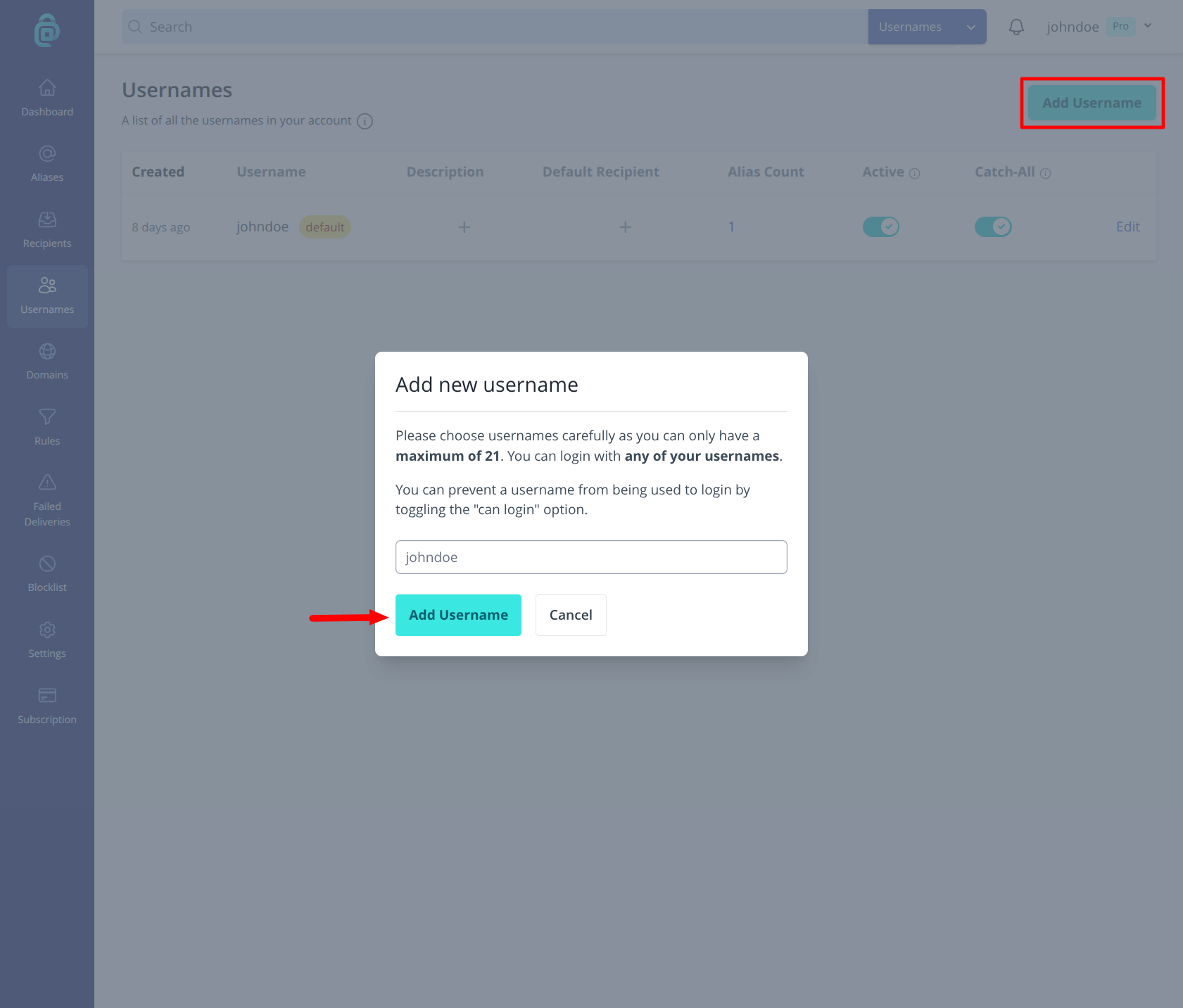
- Log in and go to Usernames in the navigation bar.
- Click Add Username (or the equivalent button on the page).
- Enter the username you want (e.g.
janedoe) and submit. If it is available, it is added to your account.
- Optionally add a description and set a default recipient for this username (overrides your account default for aliases at that username).
- Use Can Be Used To Login if you want to sign in with this username. See Setting whether a username can be used to login.
Using your new username
You can use an additional username like your main one:
- Create standard aliases on the fly at
anything@janedoe.anonaddy.comoranything@janedoe.anonaddy.me(with catch-all enabled). - Generate aliases via Aliases > Create Alias, the browser extension, mobile app, or API.
You can also add usernames via the API. See API documentation.