
The addy.io API lets you manage aliases, recipients, and other account data from your own apps or scripts. To use the API, you create an API key in your account settings and send it with each request. This article explains how to create, use, and delete API keys. For full endpoint details and examples, see the API documentation at app.addy.io/docs.
Where to find API Settings
After logging in, go to Settings in the navigation bar and click on the API tab. Here you can create new API keys and see or revoke existing ones.
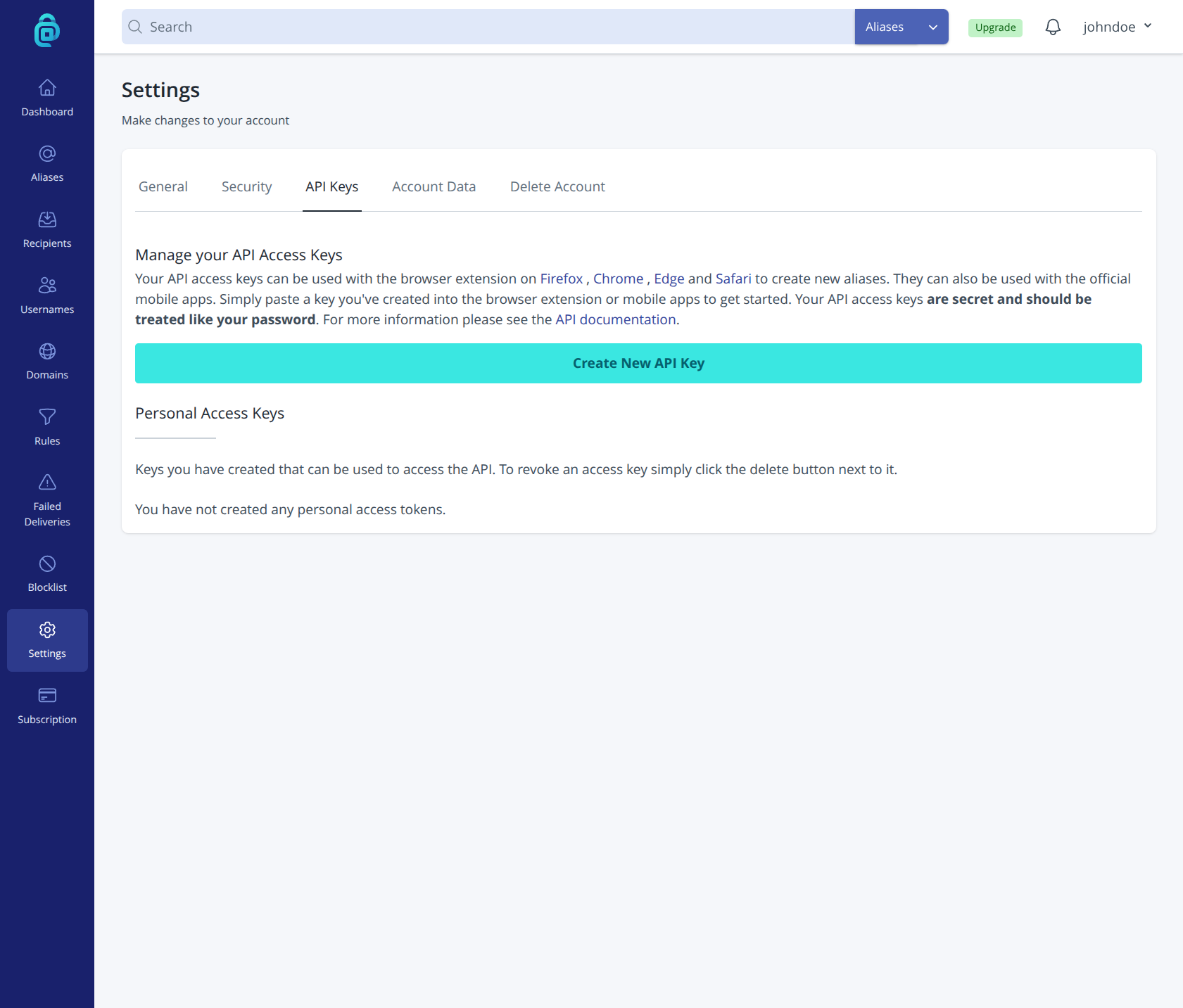
Creating an API key
An API key acts like a password for the API: you use it to authenticate your requests. Create a separate key for each app or script, and give it a clear name so you can recognise it later.
To create a new API key:
- Open API in your account settings.
- Click Create New API Key.
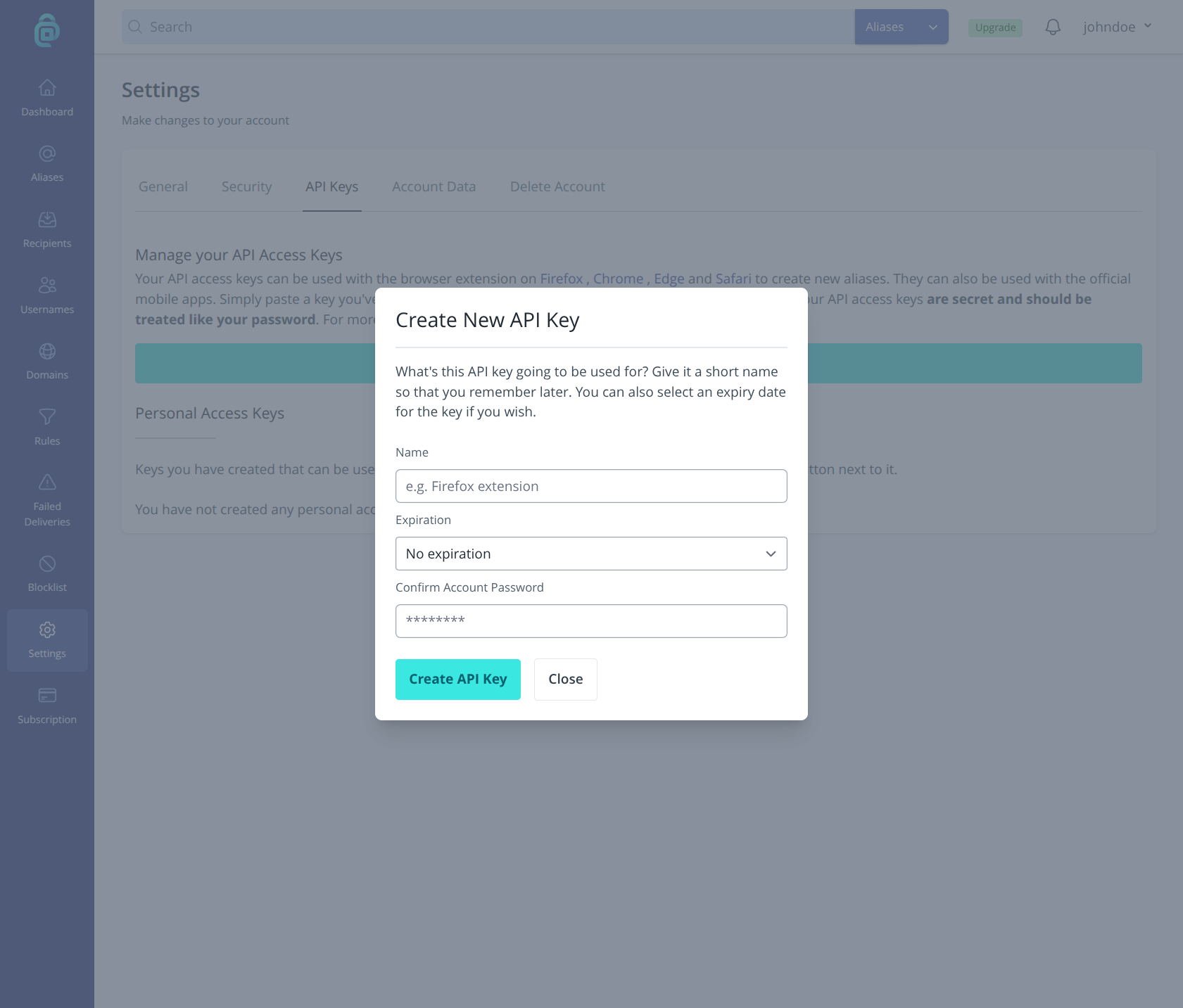
- Enter a name for the key (e.g. "Mobile app" or "Backup script"). This helps you identify it in the list later. You can also optionally choose an expiration time for this key.
- Click Create API Key. addy.io will show the new key once. Copy it and store it somewhere secure (e.g. a password manager). You will not be able to see the full key again after you leave the page.
- If you lose the key before saving it, delete that key and create a new one.
Important: Treat your API key like a password. Do not share it or commit it to public code. If a key is exposed, delete it in API settings and create a new one.
Using the API and your key
Send your API key with each API request so addy.io can identify your account. You do this by adding an Authorization header, for example:
- Bearer token:
Authorization: Bearer your_api_key_here
The base URL for the API is https://app.addy.io/api/v1/ (or as stated in the docs). Use the documentation to find the exact endpoints for the actions you need (e.g. creating aliases, deactivating an alias, or managing recipients).
Full API documentation: https://app.addy.io/docs
Deleting an API key
If you stop using an app or script, or you think an API key has been compromised, you should revoke (delete) it so it can no longer be used.
To delete an API key:
- Click on the API Keys tab in your account settings.
- Find the key you want to remove (use the name you gave it when creating).
- Click Delete next to that key.
- Confirm when prompted. The key is invalid immediately; any app or script using it will get authentication errors until you provide a new API key.
You can create a new API key at any time if you need to replace a deleted one or add another app.