
Alias labels let you organise your aliases with custom tags such as Shopping, Banking, Newsletters, or Work. You can assign labels when creating an alias, update labels later, filter your alias list by label, and apply labels to multiple aliases at once.
Create labels
- Log in and go to Aliases.
- Either:
- For a single alias - Click the pencil icon in the
Labelscolumn. - For multiple aliases - Select your chosen aliases then click Edit Labels at the top of the table.
- For a single alias - Click the pencil icon in the
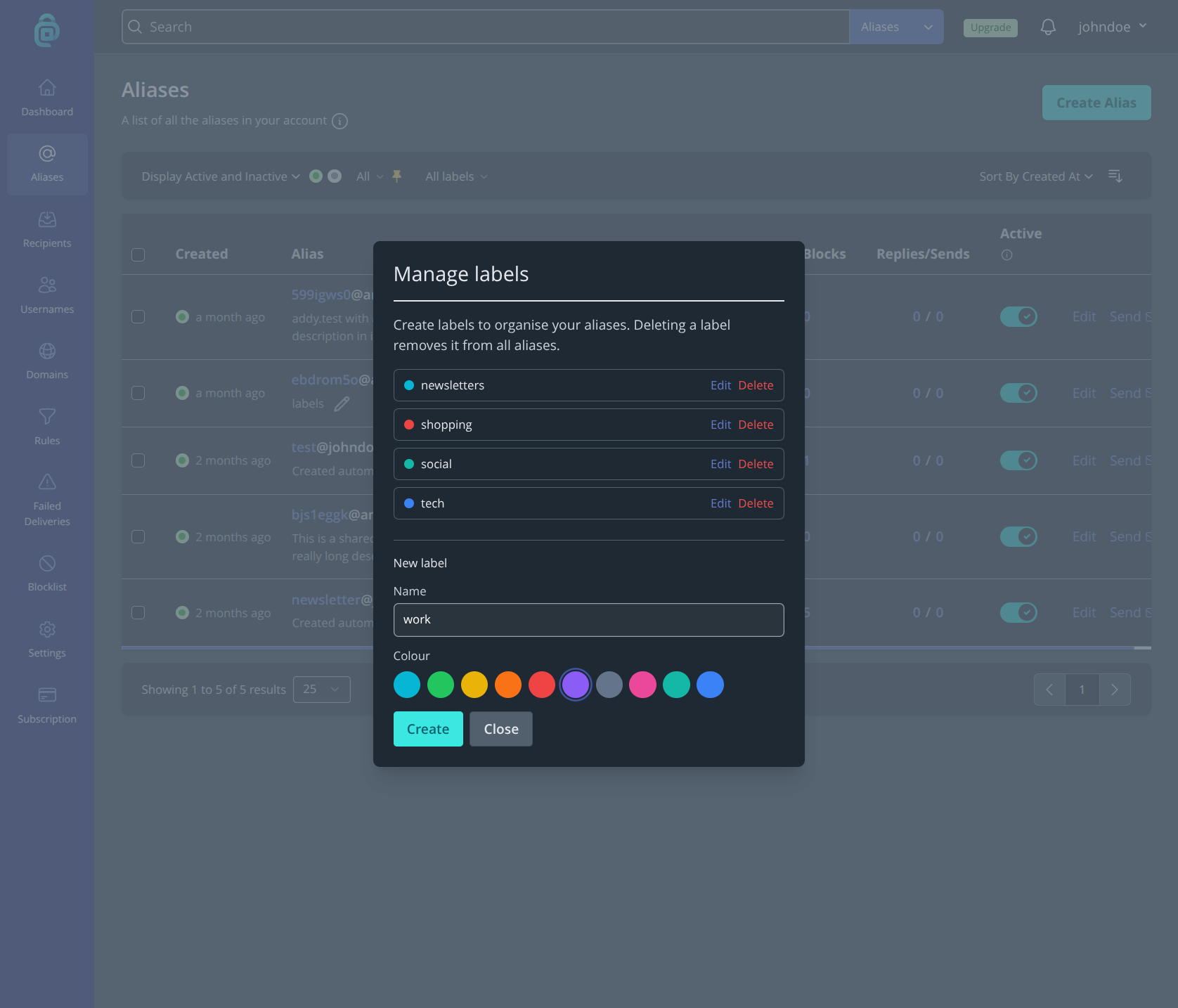
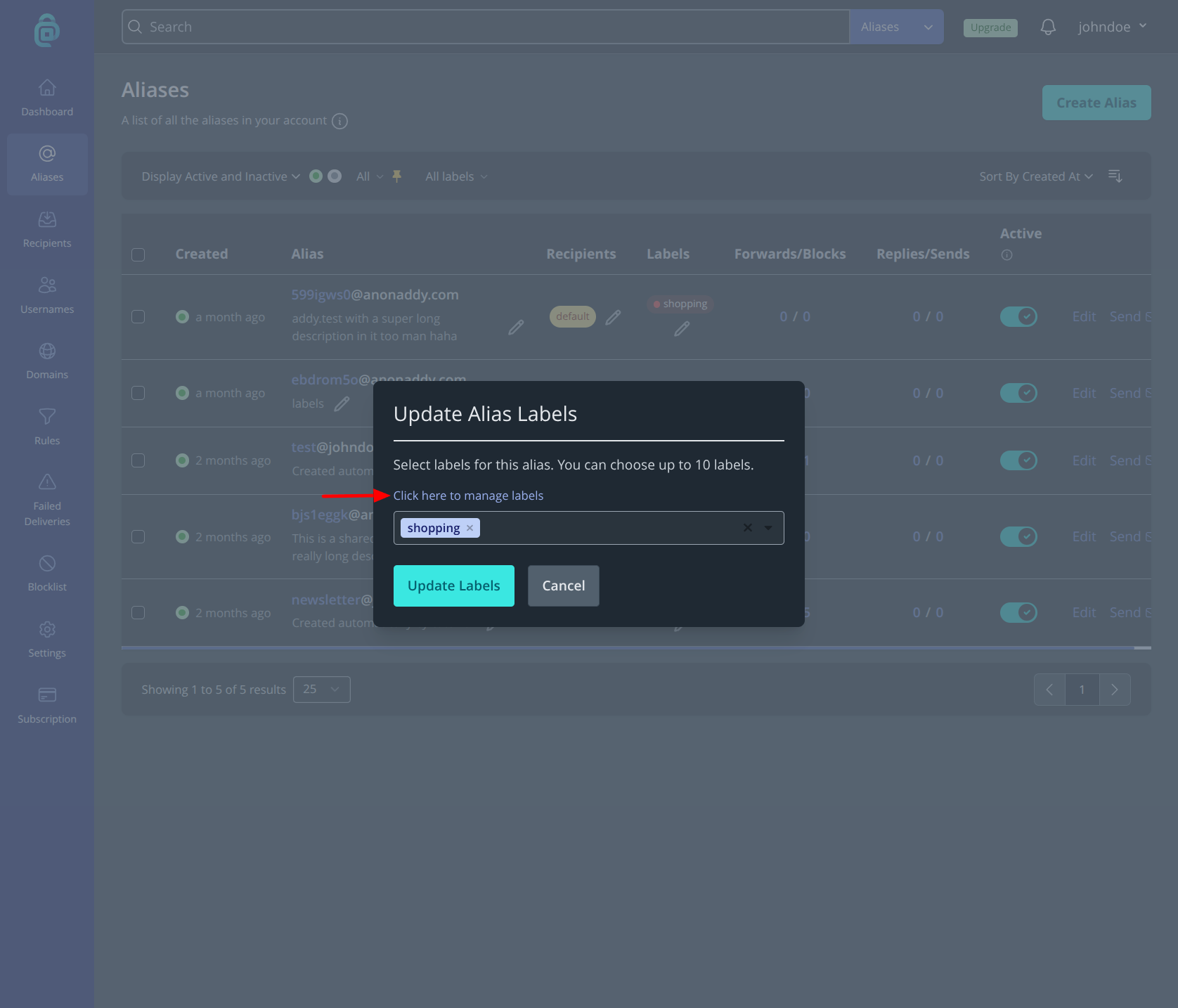
- Click Click here to manage labels in the popup modal that appeared.
- In Manage labels, enter a Name, choose a Colour, then click Create.
You can create labels once and reuse them across many aliases.
Assign labels to a new alias
- In Aliases, click Create alias.
- In the Labels field, select one or more labels (optional).
- Click Create Alias.
The new alias is created with those labels already attached.
Assign or change labels for an existing alias
- In Aliases, find the alias you want to update.
- In the Labels column, click the edit icon.
- Select or remove labels.
- Click Update Labels.
You can assign up to 10 labels per alias.
Update labels for multiple aliases
- In Aliases, tick the checkboxes for the aliases you want to update.
- Choose Update Labels for Aliases.
- Select the labels you want to apply.
- Click Update Labels.
This is useful when tagging many aliases at once (for example, marking older aliases as Archive).
Filter aliases by label
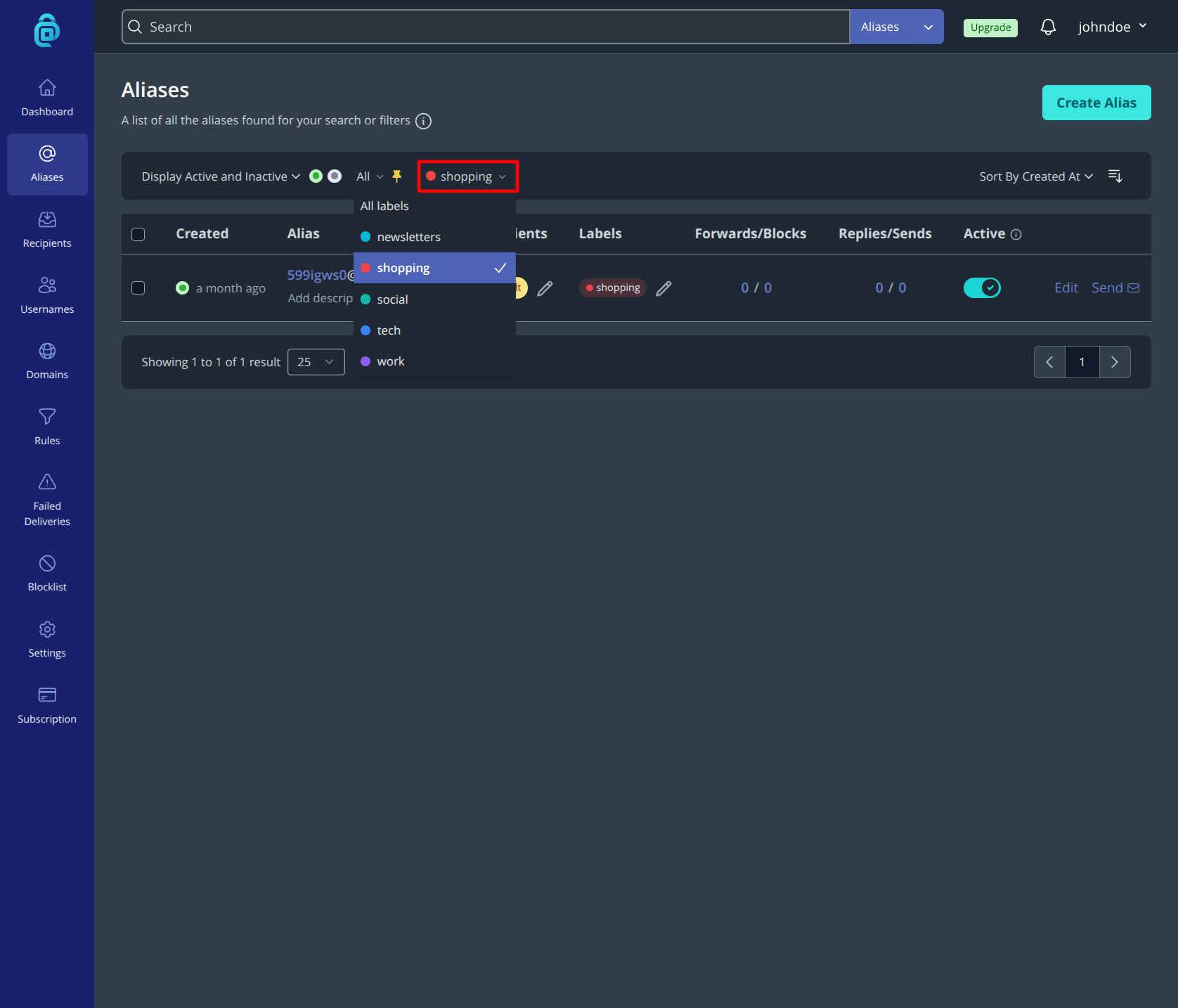
Use the Label filter dropdown at the top of the aliases list to show:
- All labels, or
- Only aliases with a specific label.
This makes it easier to review groups of aliases without changing their domains, recipients, or status.
Edit or delete labels
- Open Manage labels from an alias labels modal.
- To rename or recolour a label, click Edit, update the values, then click Save.
- To remove a label, click Delete and confirm.
Deleting a label removes it from all aliases that currently use it.