
Deleting an additional username removes it from your account. All aliases at that username (e.g. *@deletedusername.anonaddy.com) will be removed and will no longer work; the username will not be possible for you or someone else to register later. You cannot delete your default username, you must change your default username first. This article explains what to do before deleting and how to delete an additional username.
Before you delete a username
- Aliases at this username - All aliases that use this username’s domain will be removed and stop working. If you need to keep using any of those addresses, consider deactivating or deleting them only, or moving important mail to another username first. You cannot “move” a username's aliases to another username; you would need to recreate aliases elsewhere.
- Default username - If this username is your account’s default username, set a different default before deleting.
- Limit - Deleting an additional username frees a slot: you can add another username later up to your plan limit (e.g. 5 for Lite, 20 for Pro).
How to delete an additional username
- Log in and go to Usernames in the navigation bar.
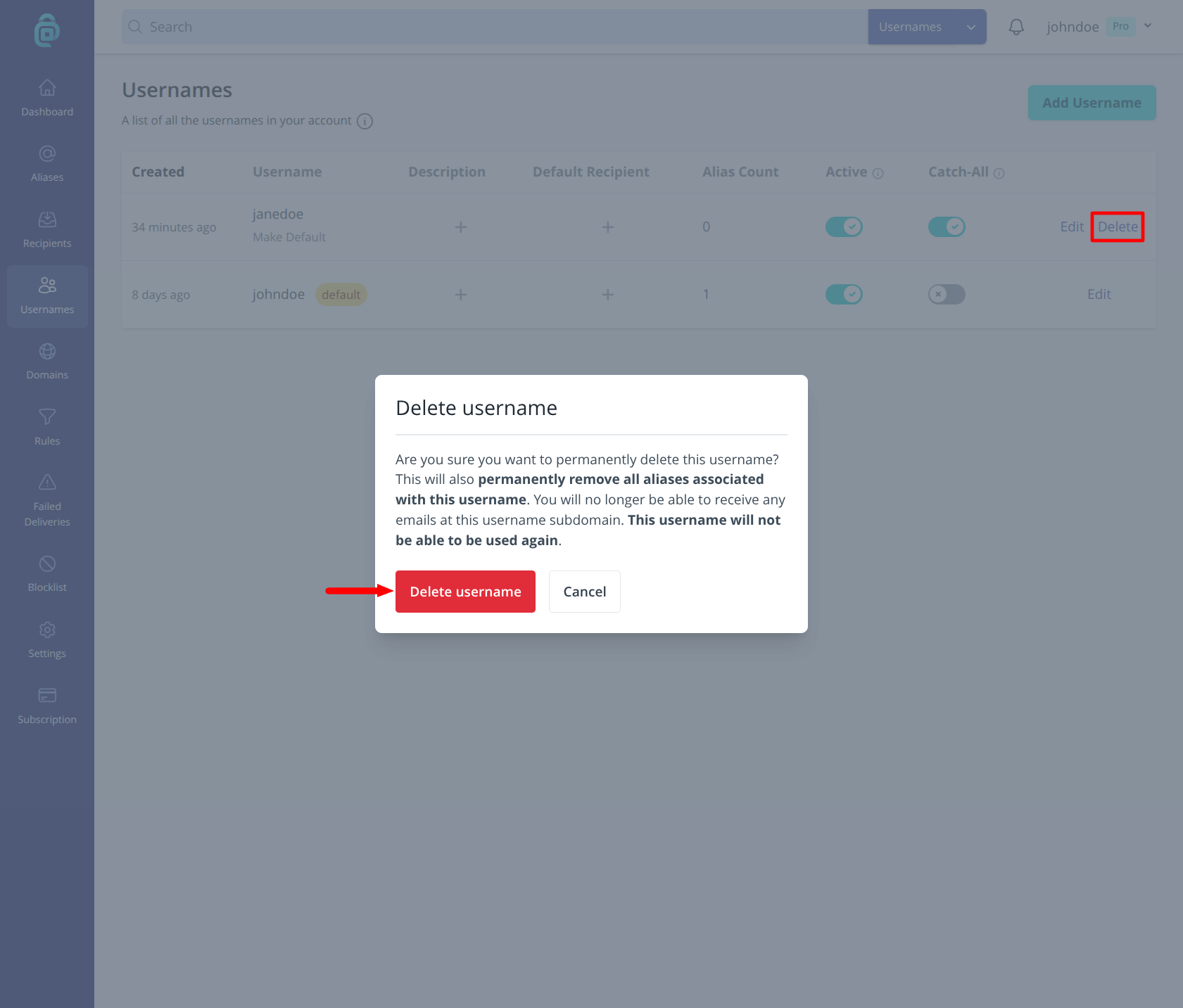
- Find the username you want to remove and click "Delete" (as shown by the red box below).
- Confirm by clicking Delete username. The username and its aliases are removed from your account.
You cannot restore a deleted username or its aliases. If you only want to stop logging in with a username but keep it for aliases, use Setting whether a username can be used to login and turn Can Be Used To Login off instead of deleting.