
Deactivating an alias stops it from forwarding mail. Messages sent to it are silently discarded and the sender is not notified. You can turn the alias back on at any time. This article explains how to deactivate an alias from the dashboard, a forwarded email, the browser extension, mobile app, or API.
Option 1: From your dashboard
- Log in and go to Aliases in the navigation bar.
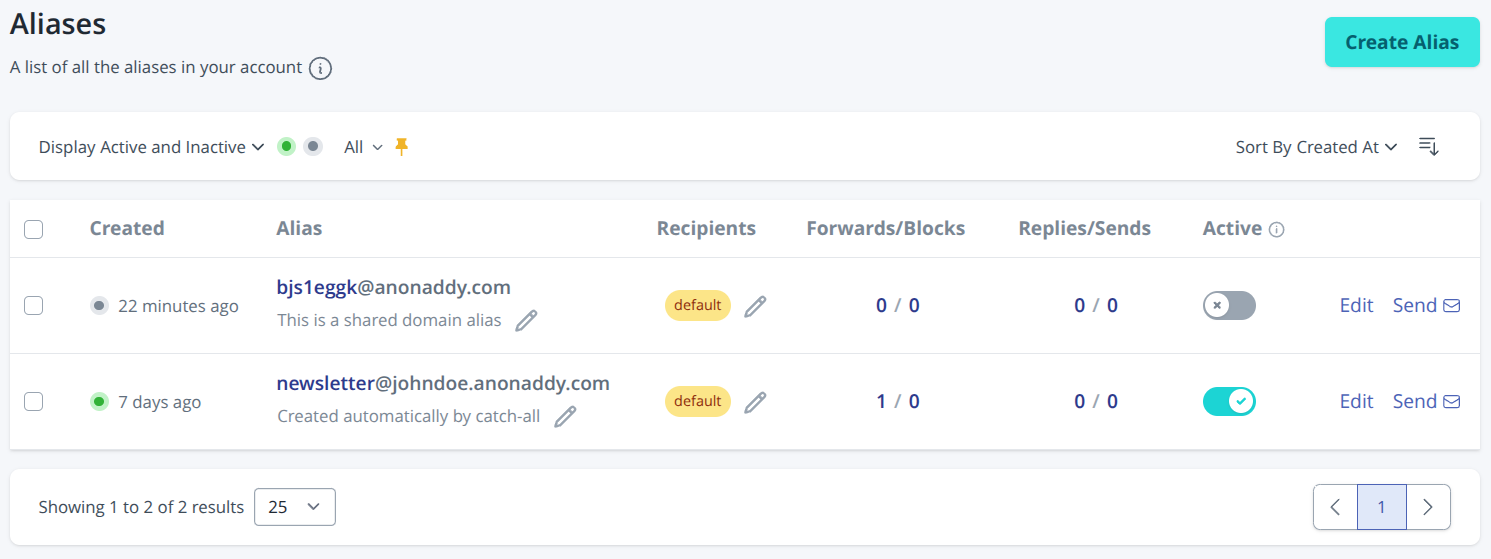
- Find the alias you want to pause and turn Active off using the toggle in the Active column (as shown below).
Option 2: From a forwarded email
Each forwarded email includes a banner (unless you have turned it off under Settings > General). Click the deactivate link in that banner.

You must be logged in (or log in after clicking the link) for deactivation to succeed. This protects you if you reply to a forwarded message and might expose the deactivation link to the other party.
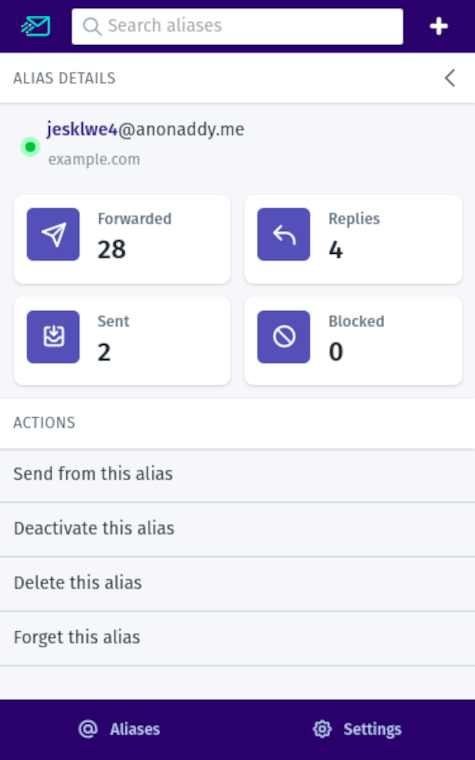
Option 3: From the browser extension
Option 4: From the mobile apps
Open the alias in the app and use the deactivate option. See Downloading and using the mobile app for more.
Option 5: Using the API
Create an API key under Settings > API, then use the deactivate endpoint. See API documentation.
Deactivate vs delete vs forget
- Deactivate - Pause forwarding; alias stays on your account.
- Delete - Remove the alias; mail is rejected; you can restore it later.
- Forget - Permanently give up the alias (shared-domain aliases cannot be restored).