
When addy.io records a failed delivery, it appears in your Failed Deliveries list for a limited time. Entries are automatically cleaned up after a retention period (currently 7 days), but you can delete them manually sooner. Deleting removes the failed-delivery record from your account; you will no longer be able to view or resend that message. This is useful when you have fixed the issue and already resent it, or when you do not need to keep the failed delivery (e.g. spam or an old test). This article explains how to delete a failed delivery.
Before you delete
- Resend first if you need the message - Once deleted, the failed delivery cannot be restored or resent. If you might want to deliver it to your recipient after fixing the problem, resend it before deleting, or download a copy if you need to keep the content.
- Deleting only removes the record from your addy.io list; it does not change your alias or recipient settings.
How to delete a failed delivery
- Log in and go to Failed Deliveries in the navigation bar.
- Find the failed delivery you want to remove and click "Delete" as shown in the red box below.
- Confirm by clicking Delete failed delivery. The failed delivery is removed from your account.
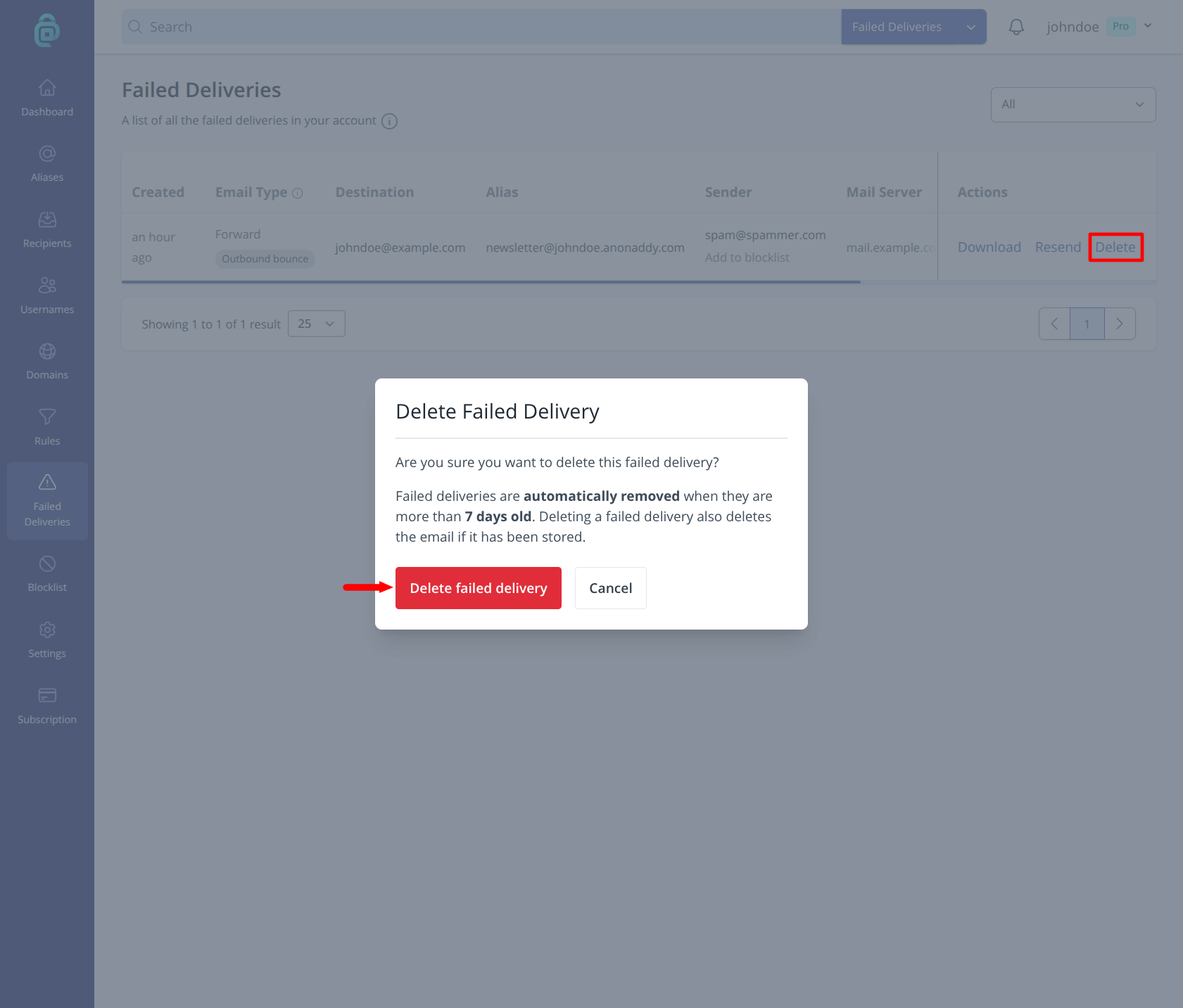
You can delete failed deliveries one at a time. If a failed delivery has a stored email, deleting the failed-delivery entry also deletes that stored message. To reduce future failures, see How can I prevent or reduce failed deliveries?.