
When a rule runs, it can block an email, disable encryption, or send the message to a different recipient. Multiple rules can match the same message, so more than one action may be applied. To see whether a rule was applied to a particular message, you can check the "last applied" time. This article explains how to determine if a rule has been applied.
Check the Applied column
- Log in and go to Rules in the navigation bar.
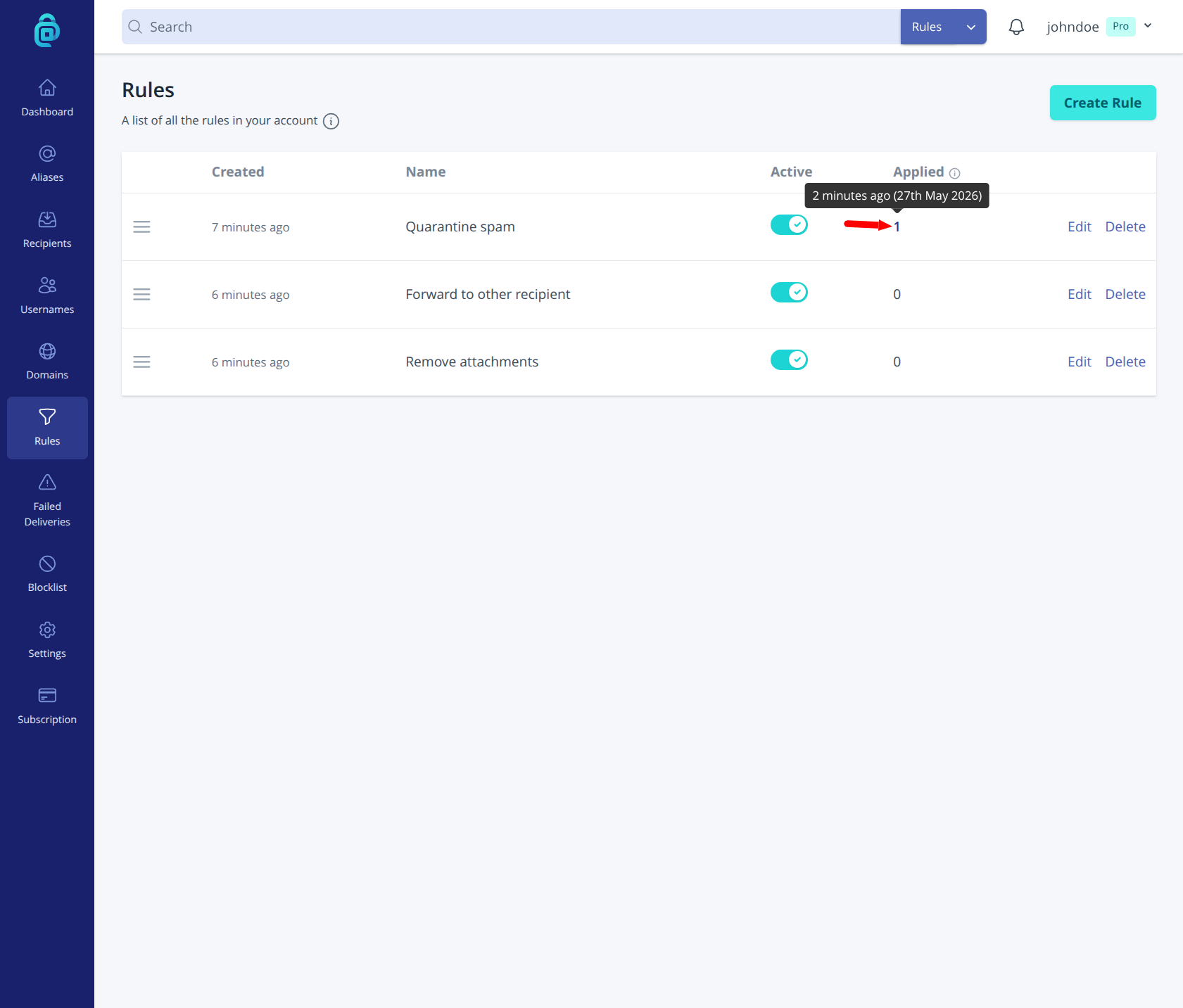
- Look at the Applied column, which shows how many times each rule has run.
- Hover over the number to see when that rule was last applied (for example "an hour ago" or a specific date).
Inferring from what happened to the email
- Message was blocked - If you expected the email but it never arrived at your recipient and was not in your spam folder, a rule with a "block" action may have matched. Check your rules' conditions (sender, subject, alias) and order.
- Message went to a different recipient - If the email was forwarded to an address you did not expect, a rule with a forward to action may have matched.
- Encryption was disabled - If a message that you expected to be encrypted was not, a rule that disables encryption may have matched.
If you are unsure, temporarily deactivating a rule and sending a test email can help confirm whether that rule was responsible.