
Security settings help you protect your addy.io account: you can change your password, sign out of other devices or browsers, turn on two-factor authentication (2FA) with an authenticator app or a device/passkey, and generate backup codes in case you lose access to your authenticator app. This article walks you through each option. You can find them under Settings in the navigation bar, then the Security tab.
Where to find Security Settings
After logging in, go to Settings and click on the Security tab. You will see options for password, sessions, two-factor authentication, and backup codes.
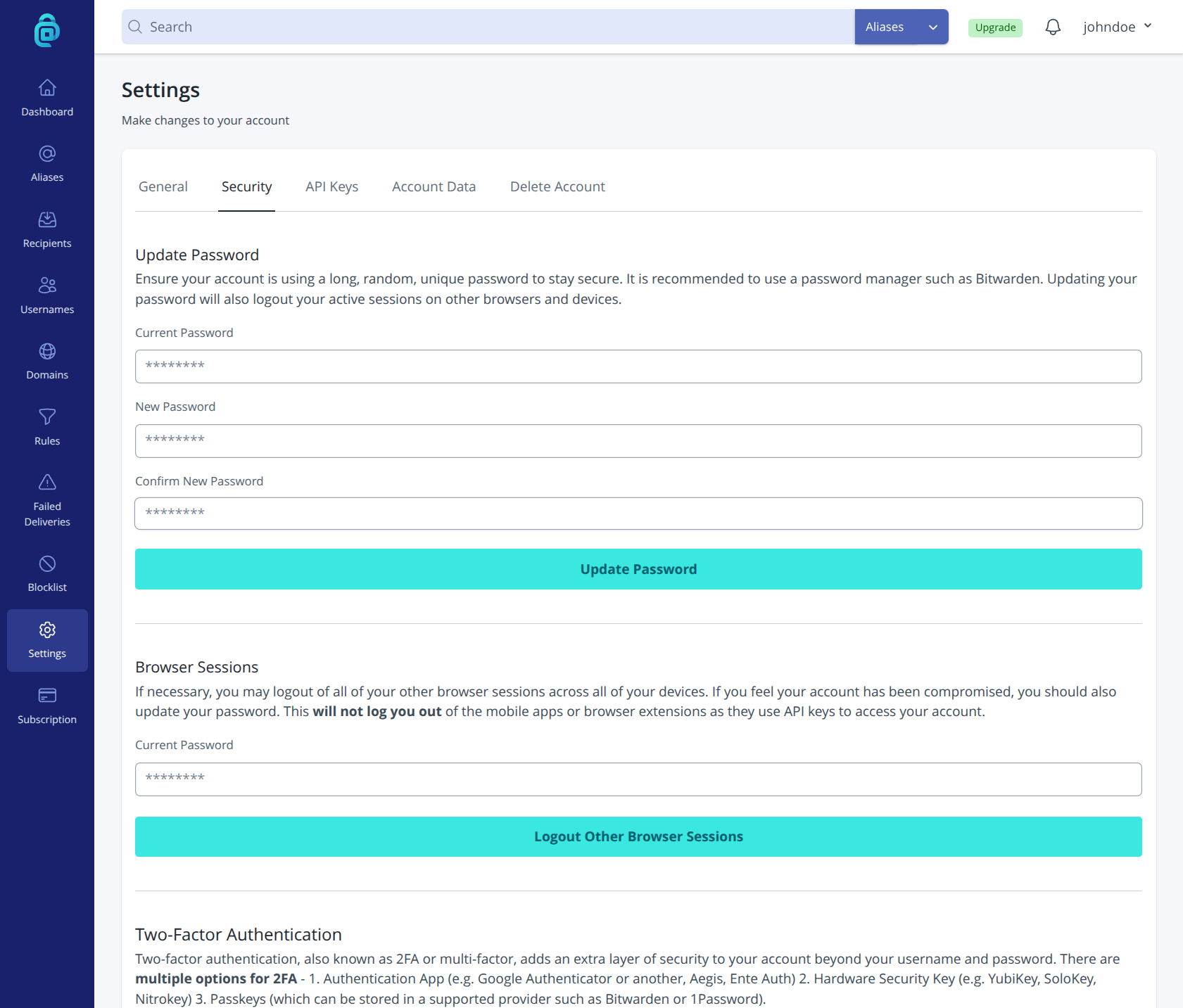
Updating your account's password
Using a strong, unique password helps keep your account secure. Use a password that you do not use anywhere else.
To change your password:
- Open Security settings.
- Find Update password at the top of the page.
- Enter your current password.
- Enter your new password and confirm it. Make sure it meets any requirements shown (length, characters, etc.).
- Save or submit. Other sessions will be logged out when your password is changed (mobile apps and browser extensions using API keys will not be logged out).
If you have forgotten your current password, you cannot change it from here. Use the Forgot password? flow on the login page instead.
Logging out of other browser sessions
If you have logged in on another device or browser (for example, a shared computer or an old phone), you can sign out those sessions from addy.io while staying logged in on the one you are using now. This is useful if you think someone else might have access to your account or if you have lost a device.
To log out of other sessions:
- Open Security settings.
- Find Browser sessions.
- Click the button "Logoug Other Browser Sessions". addy.io will invalidate all other sessions; (mobile apps and browser extensions using API keys will not be logged out) you will remain logged in on the current browser.
- Any other device or browser will need to log in again with your username and password (and 2FA if enabled).
Setting up Two-Factor authentication
Two-factor authentication (2FA) adds an extra step when you log in: after entering your username and password, you prove it is really you with a second factor. addy.io supports two methods:
- Authenticator app - a time-based one-time code from an app on your phone (e.g. Authy, Google Authenticator, or Aegis).
- Device / passkey - a security key, passkey, or built-in option such as Windows Hello, Touch ID, or Face ID (WebAuthn).
You can enable one or both methods. If both are enabled, you choose which to use each time you log in on the website, browser extension, or mobile app. Either way, someone who only knows your password cannot sign in without your second factor. If you lose access to your 2FA methods and your backup codes, contact support for help; recovery may require verifying your identity.
Authenticator app
- Open Security settings.
- Under Two-Factor Authentication, enable the authenticator app option.
- Use your authenticator app to scan the QR code shown on the screen, or enter the secret key manually if the app supports it.
- Enter the six-digit code that the app displays to confirm that 2FA is set up correctly.
- Save your backup codes in a safe place. You can use a backup code to log in if you lose access to your authenticator app. See Generating a new backup code below.
Device or passkey (WebAuthn)
- Open Security settings.
- Under Two-Factor Authentication, enable the device / passkey option.
- When prompted, follow your browser's steps to register a security key, passkey, or platform authenticator (for example, fingerprint or face recognition on your computer or phone).
- Complete the verification to confirm the device is registered.
Passkeys and security keys do not use six-digit codes or backup codes; those apply to the authenticator app method only. You can register more than one device.
Using both methods
With both methods enabled, after you enter your password you will be asked to choose authenticator app or device / passkey, then complete that method. This is useful if you want a code on your phone as a fallback when you do not have your security key to hand, or vice versa.
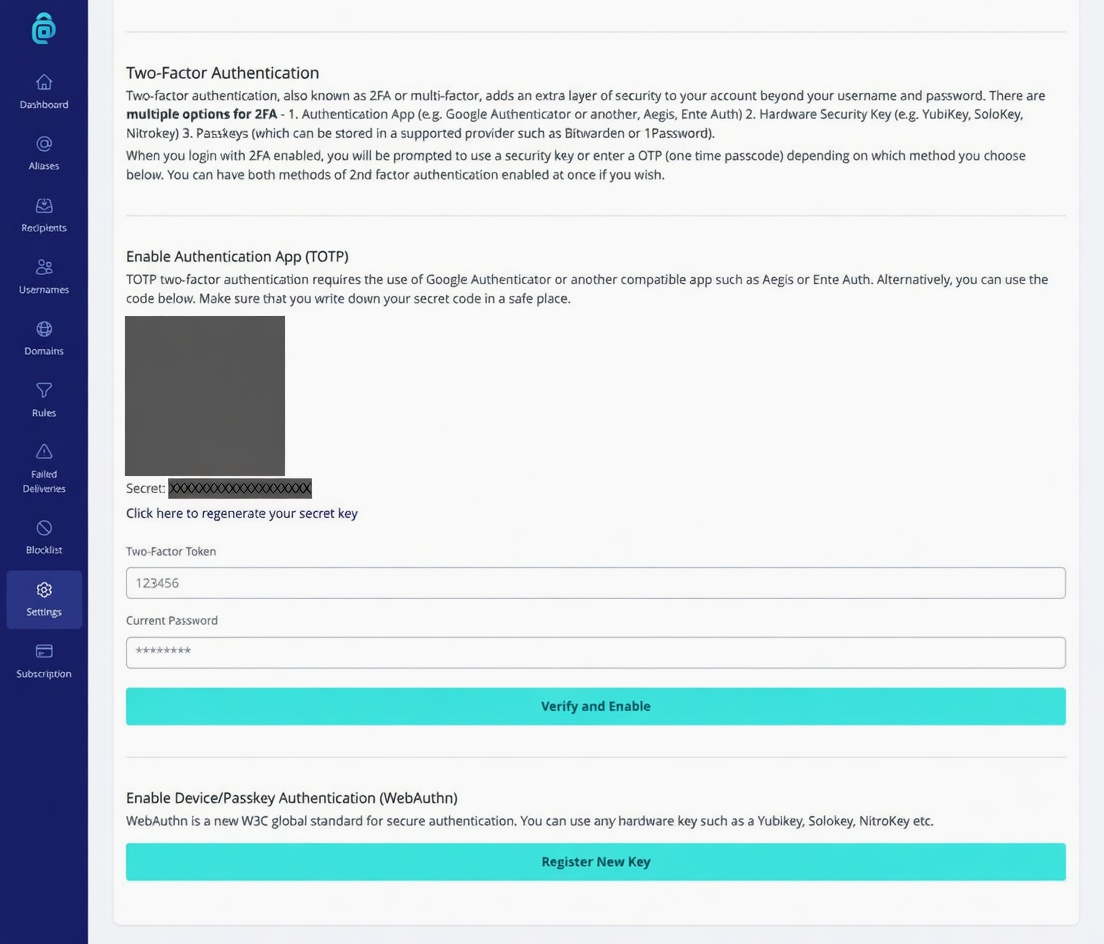
Generating a new backup code
Backup codes are one-time codes you can use to log in when you do not have your authenticator app (for example, if you lost your phone). You should store them somewhere safe and private (e.g. a password manager or secure note).
To generate new backup codes:
- Open Security settings.
- Find Generate new backup codes.
- You will be asked to enter your password or a 2FA code to continue.
- Click to Generate or Regenerate backup codes. Important: Generating new codes may invalidate any previous backup codes, so only do this if you need fresh codes or have lost the old ones.
- Copy or download the code and store it securely.
If you have the authenticator app enabled and lose both your app and your backup codes, contact support to request account recovery. For general login issues, see What to do if you have forgotten your username or password.