Each additional username (and your main username) can have its own default recipient. New aliases at that username will forward to this address until you change the recipients for the alias. This overrides your account’s global default recipient for aliases at this username. This article explains how to set or change the default recipient for a username.
Where to change the default recipient for a username
- Log in and go to Usernames in the navigation bar.
- Find the username you want to edit and click the plus icon in the Default Recipient column (as shown below).
- Select the verified recipient you want as the default for this username.
- Click Update Default Recipient.
From then on, any new alias at this username (e.g. something@thisusername.anonaddy.com) will use this recipient by default. Aliases at other usernames or your account default are unaffected. You can still change the recipient for any individual alias later.
Can I set multiple default recipients?
Yes, but you have to use rules instead of setting them directly because each username can have only one default recipient at a time.
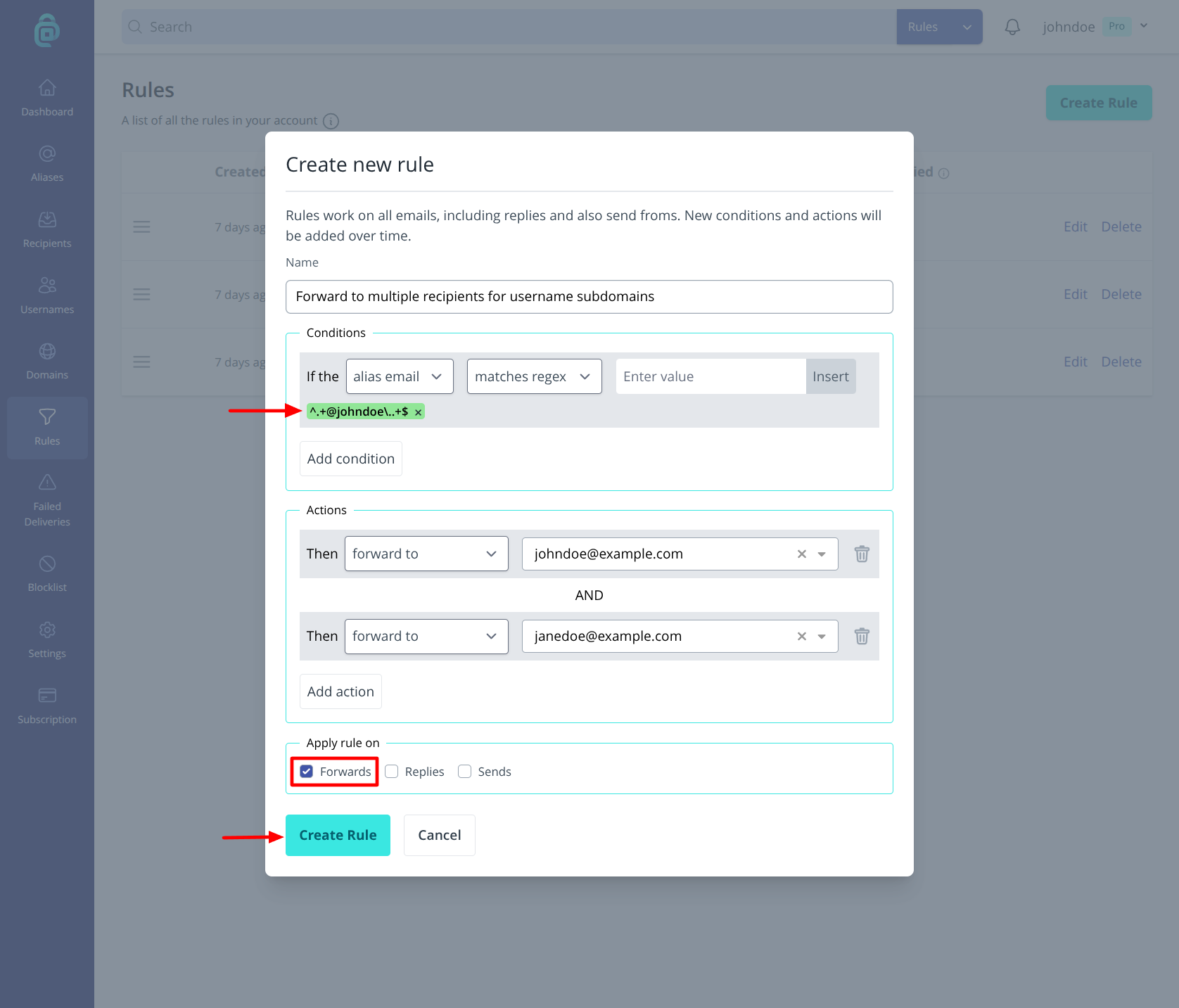
If you want all mail at that username to reach more than one inbox, it is possible by using rules. Create a new rule, set the conditions described below and then select the "forward to" action for each recipient you want to receive the mail:
- Conditions - Set an alias email condition that matches your username subdomain (for example
*@johndoe.anonaddy.comor*@johndoe.anonaddy.me, where johndoe is the username). You can either choose theends withmatch type or you can selectmatches regexand then enter this^.+@johndoe\..+$making sure to replace "johndoe" with your username. - Actions - Select forward to your chosen recipient and then click "Add action" and select forward to your next recipient etc.
When an email arrives at an alias on that username, the rule will be matched and applied, so each recipient will receive a copy of the email. Rules are a paid feature (Lite and Pro); see pricing.