
You can export your addy.io account data (such as your aliases) to a CSV file for backup or use in other tools, and you can import a list of aliases for a custom domain so you do not have to create them one by one. This article explains where to find these options and how to export and import your data safely.
Where to find import and export options
After logging in, go to Settings in the navigation bar. click on the Account Data tab. Export and import are in the same area.
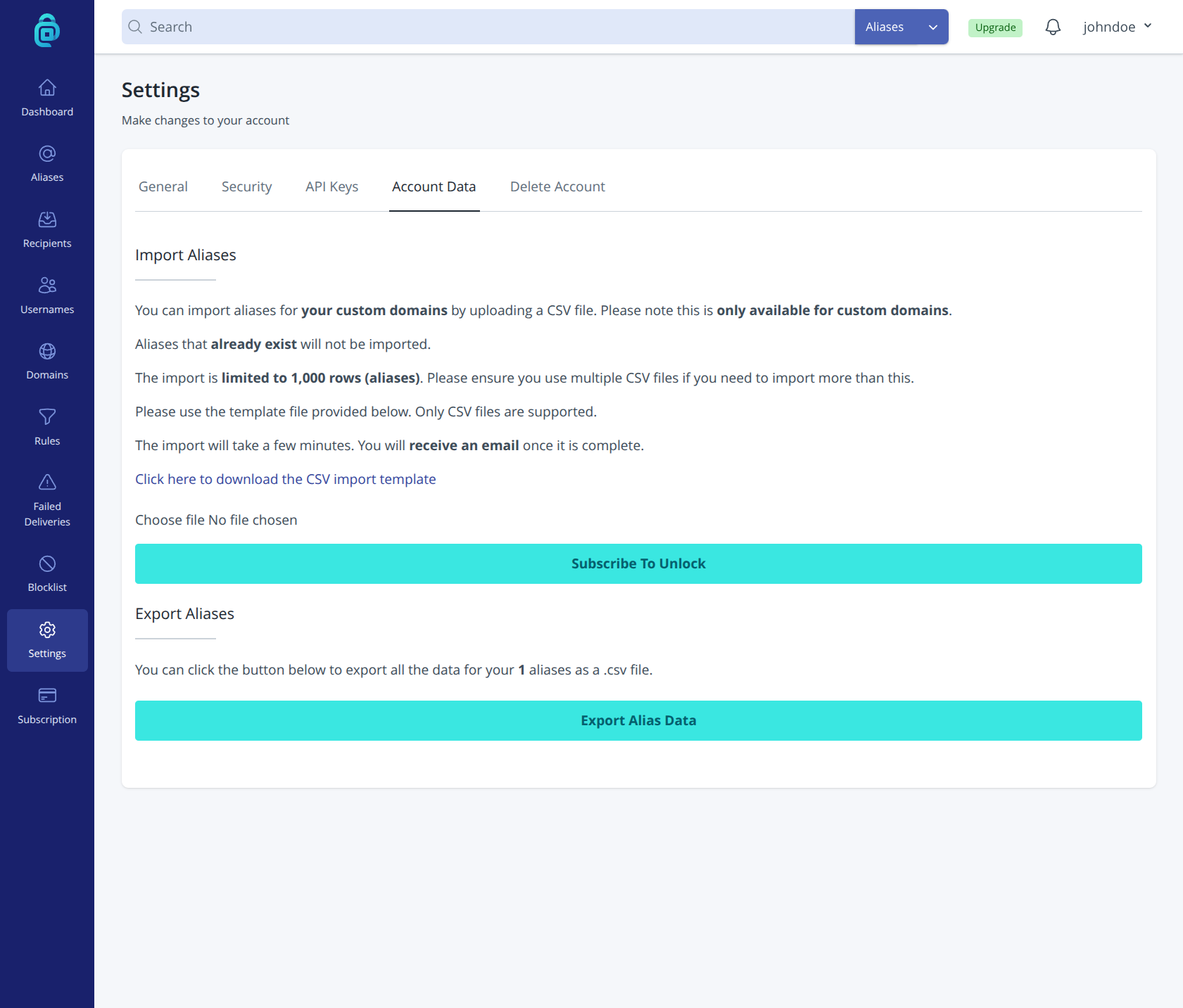
Exporting your account data
Exporting creates a CSV file containing your alias data so you can keep a backup or use it elsewhere. A typical export includes your aliases and related details (e.g. domain, recipient, active status, description).
To export your data:
- Open Settings and go to the Account Data tab.
- Find Export Aliases .
- Click Export Alias Data. Your browser will download a CSV file.
- Store the file somewhere safe and private. It contains information about your aliases and account; do not share it or upload it to a public place.
Exports are useful for backups before making big changes, for moving to another service, or for analysing your aliases in a spreadsheet. If you later delete your account, the export is a record of what you had.
Importing aliases for your custom domain
If you have a custom domain and want to add many aliases at once (e.g. a list of addresses you used elsewhere), you can import them from a file instead of creating each alias manually.
To import aliases:
- Open Settings and go to the Account Data tab.
- Find Import aliases.
- Download the CSV template and create your list of aliases matching that format.
- Upload your file.
- You will receive an email confirmation once the import process has finished.
Imported aliases behave like aliases you create in the dashboard: they forward to your recipient(s) and can be deactivated or deleted if needed. If the import format or options differ from what you expect, contact support.
Tips
- Export before big changes - Export a backup before you bulk-delete aliases, change domains, or delete your account.
- Format for import - Use the format described on the import page (e.g. CSV with headers, or one alias per line). Wrong formatting can cause imports to fail or skip rows.
- Custom domain required for import - Bulk import is only for aliases at a custom domain. Standard shared-domain aliases (e.g. @anonaddy.me) are created by generating, not by bulk import.