
A custom domain lets you use standard aliases at addresses you own, such as newsletter@yourdomain.com, instead of only @username.anonaddy.com. You verify ownership with DNS, then add mail records so addy.io can receive forwards and (optionally) send and reply from that domain.
For a subdomain (e.g. mail.example.com), use the same process but different DNS host values - see Adding a custom subdomain.
Before you start
- Plan - Custom domains require a Lite or Pro subscription (free accounts cannot add domains). Lite allows 1 custom domain; Pro, Duo and Family allow 20 (see pricing).
- DNS access - You need to add records at your domain registrar or DNS host (Cloudflare, Namecheap, etc.).
- Domain format - Enter
example.comonly. Do not includehttp://,https://, or paths. - Not a recipient domain - The domain must not already be used as a verified recipient address on your account.
Step 1: Prove ownership (TXT record)
- Log in and go to Domains in the navigation bar.
- Click Add Domain.
- In the Add new domain dialog, add the TXT record shown to your DNS. The table uses columns Type, Host, and Value/Points to:
| Type | Host | Value/Points to |
|---|---|---|
| TXT | @ |
aa-verify=… (your unique value - click to copy) |
- Wait for DNS to propagate (often a few minutes; sometimes up to 48 hours).
- Enter your domain (e.g.
example.com) in the field and click Add Domain.
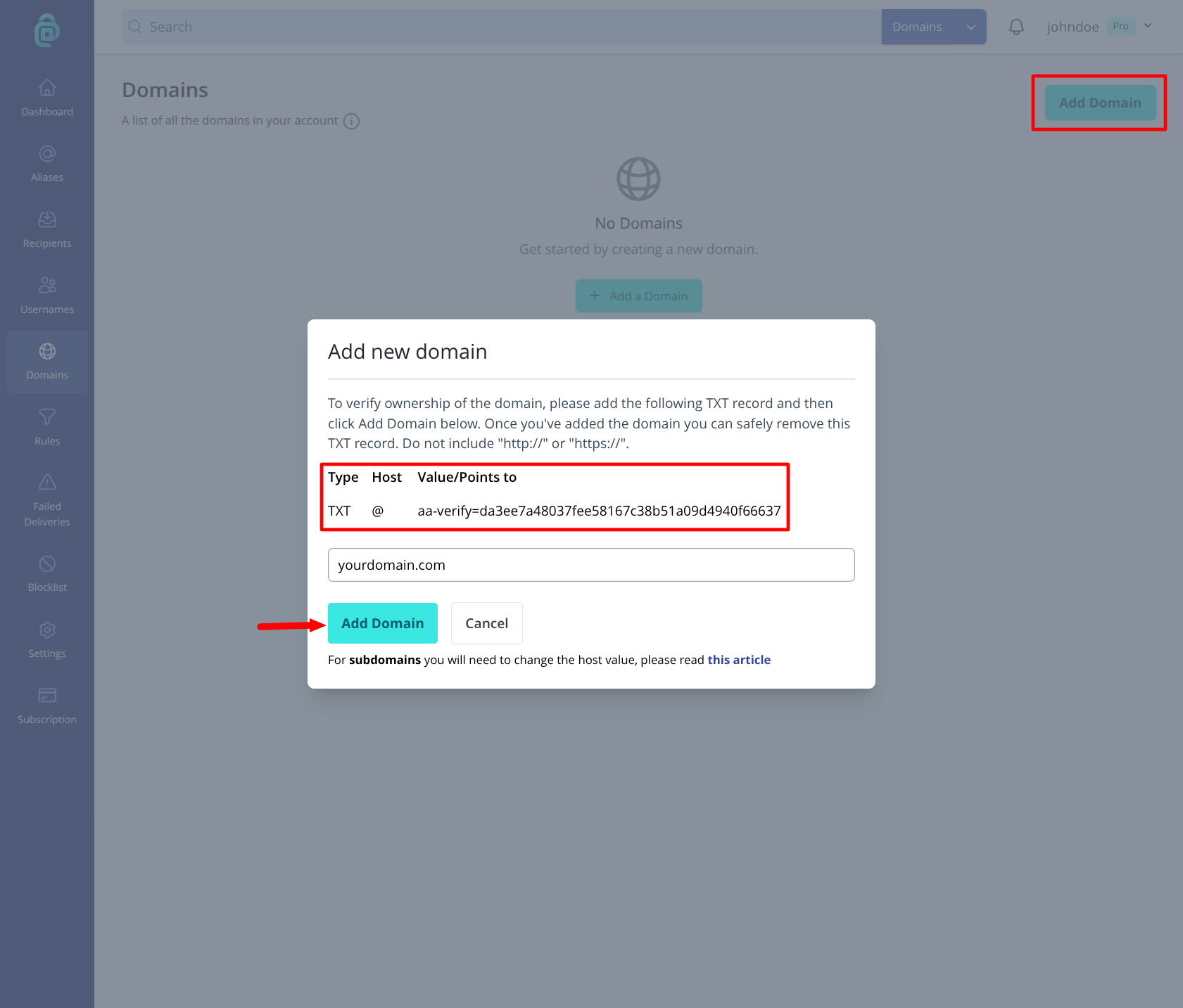
addy.io checks that the TXT record exists before the domain is added. If verification fails, wait longer for DNS caching or confirm the host is @ for an apex domain (not a subdomain label).
Note: You can remove the
aa-verifyTXT record after the domain has been added successfully - addy.io only needs it for the initial ownership check.Subdomains: If you add
mail.example.com, change the TXT host from@to your subdomain label (e.g.
Step 2: Add mail records (MX and sending)
After the domain appears in your Domains list, add the remaining records so mail can be received and (if you want) sent from the domain.
- In the Verified Records column, click Check Records (or Recheck).
- The Check DNS records dialog lists the records to add. Click any value to copy it.
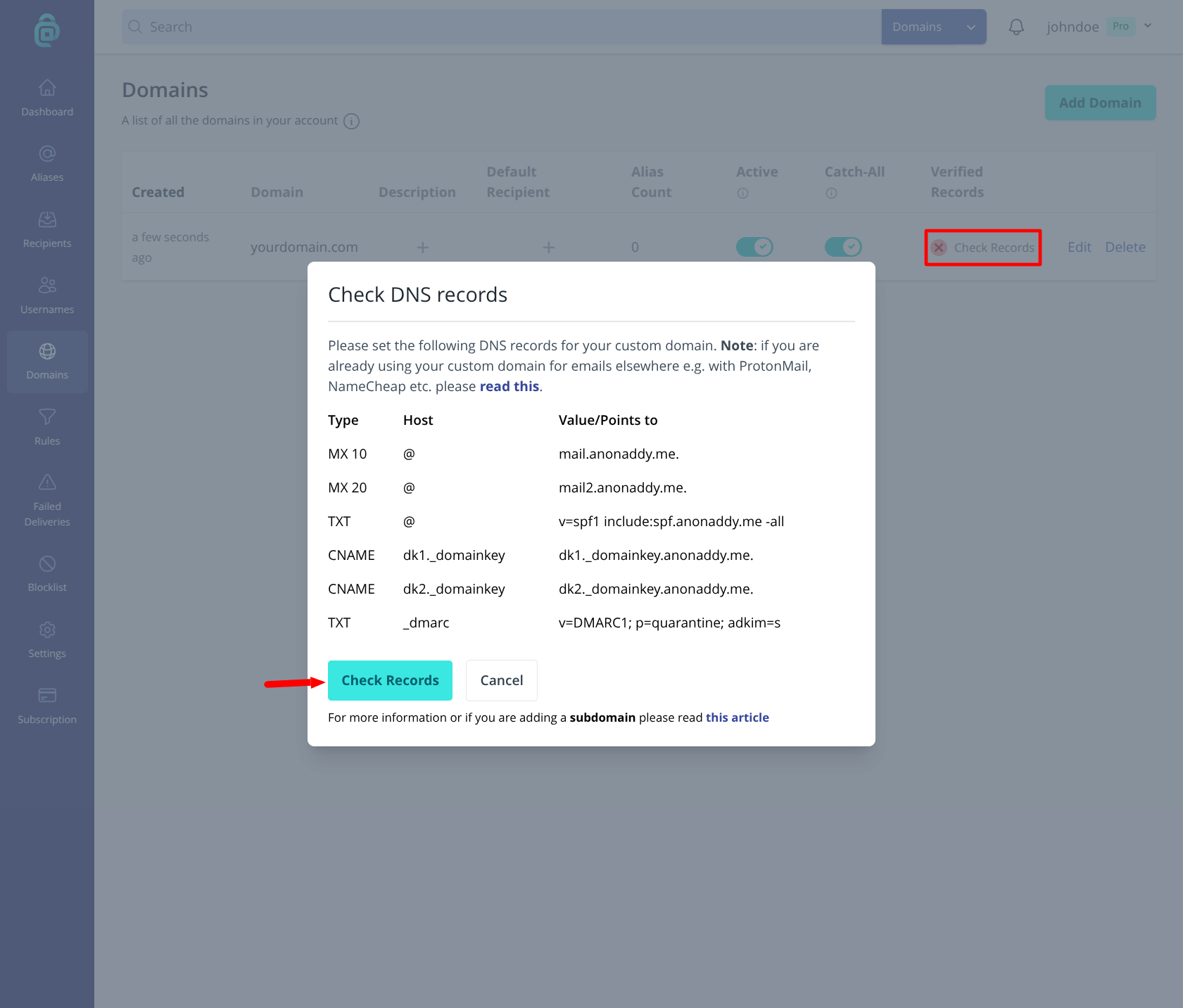
Records for an apex domain (`example.com`)
| Type | Host | Value/Points to |
|---|---|---|
| MX (priority 10) | @ |
mail.anonaddy.me. |
| MX (priority 20) | @ |
mail2.anonaddy.me. |
| TXT | @ |
v=spf1 include:spf.anonaddy.me -all |
| CNAME | dk1._domainkey |
dk1._domainkey.anonaddy.me. |
| CNAME | dk2._domainkey |
dk2._domainkey.anonaddy.me. |
| TXT | _dmarc |
v=DMARC1; p=quarantine; adkim=s |
- After propagation, click Check Records again in the dialog.
Receiving only vs receiving and sending
| Goal | Records required |
|---|---|
| Receive forwarded mail at your domain | MX records (both priorities) |
| Send and reply from aliases at your domain | MX, SPF, both DKIM CNAMEs, and DMARC |
If you only need forwarding and will never send from an alias at this domain, you can add MX only. addy.io will still prompt for sending records when you run Check Records; sending stays unverified until those records are valid.
- SPF - Authorises addy.io to send mail on behalf of your domain.
- DKIM (two CNAMEs) - Signs outbound mail. Two keys allow rotation without downtime.
- DMARC - Tells receiving servers how to handle mail that fails SPF/DKIM checks.
Step 3: Confirm verification status
In the Verified Records column:
| Status | Meaning |
|---|---|
| Green - Domain fully verified | MX and sending records are valid |
| Red - MX records invalid | Incoming mail to the domain will not work correctly |
| Red - DNS records for sending invalid | MX is OK; SPF, DKIM, or DMARC still need fixing |
addy.io re-checks MX records periodically. If records are removed or changed, validation may be cleared and you may receive an email about which record failed.
After your domain is set up
- Catch-all is enabled by default for new domains - unknown addresses like
anything@yourdomain.comcan be created on the fly when the first email arrives. You can turn this off or use alias auto create regex (paid plans) from the domain Edit page. - Set a default recipient for the domain so new aliases forward to the right inbox.
- Create aliases at your domain from Aliases > Create Alias, on the fly, or via the browser extension / API.
- Optional: set a domain From Name on the domain Edit page (Lite/Pro).
- On a Duo or Family plan, you can optionally share a verified custom domain so members can create their own aliases on it. See Sharing custom domains.
Tips and troubleshooting
- Cloudflare - Turn the proxy off (grey cloud, DNS only) for all addy.io-related records. Orange-cloud proxied records often break verification.
- Propagation - Use MXToolbox or your DNS provider’s lookup tool if Check Records still fails after you have waited.
- Existing email on the domain - If the domain already receives mail elsewhere, adding addy.io MX records will route new inbound mail to addy.io. Plan MX priority and provider setup carefully (the in-app dialog links to the FAQ for more detail).
- Each new domain - The
aa-verifyvalue can change when you add another domain; use the TXT value shown in the dialog for that specific add. - Deactivate or remove - See Deactivating a domain and Deleting a domain.
Adding a subdomain
For mail.example.com or similar, follow Adding a custom subdomain for the correct host values for MX, TXT, CNAME, and DMARC.