
You can create addy.io aliases in two main ways: on the fly (give out an address and let the first email create it) or in advance (generate the alias in the dashboard, browser extension, mobile app, or API). Which method applies depends on the domain. For a gentle first walkthrough, see Creating and testing your first alias.
Standard vs shared domain (quick reference)
| Standard alias | Shared domain alias | |
|---|---|---|
| Domain | Your username subdomain, additional username, or custom domain | e.g. @anonaddy.me (many users share the domain) |
| On the fly | Yes, when catch-all is enabled (default) | No - must be created first |
| Counts toward active shared-domain limit | No | Yes |
Option 1: Create standard aliases on the fly
For standard aliases, you do not need to open the create dialog first. Make up an address on your domain and use it wherever you would normally enter your email.
- Choose a local part (the part before
@). For example, when signing up to example.com with username johndoe, you might useexample@johndoe.anonaddy.comorexample@johndoe.anonaddy.me. - Enter that address on the website, newsletter, or app.
- When the first email is sent to that address, addy.io creates the alias automatically and forwards the message to your recipient (or recipients).
The alias then appears under Aliases in the dashboard, usually with the description Created automatically by catch-all.
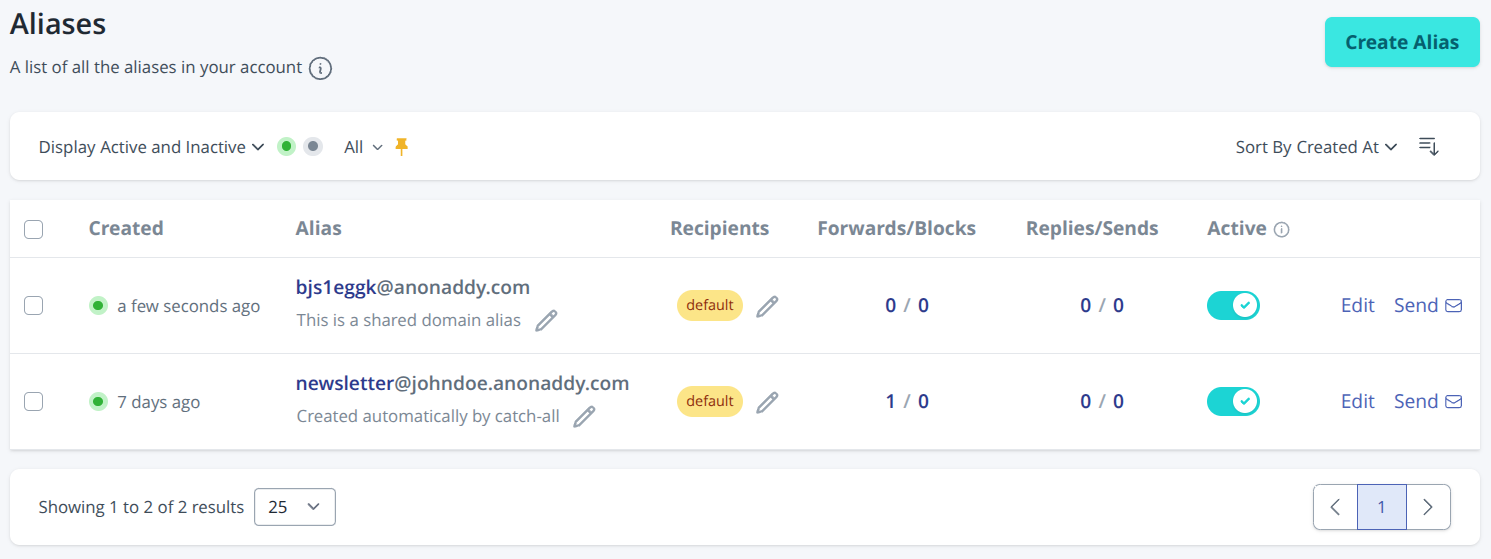
This works the same way for custom domains and additional usernames: the alias is created when it receives its first email, as long as catch-all is enabled for that username or domain.
When on-the-fly creation does not work
- Shared domains (e.g.
@anonaddy.me) - you must use Option 2 below. Giving out a random@anonaddy.meaddress that was never generated will not work. - Catch-all disabled - mail to unknown local parts on that username or domain is rejected unless you use alias auto create regex (paid plans; catch-all must be off while regex is in use).
- Hourly limits - very large numbers of new aliases in a short time may hit your plan’s hourly creation limit. See pricing if you need higher limits.
If an alias receives spam, you can deactivate or delete it. You can also forget a standard alias so the address can be used again later (behaviour differs for shared domains).
Option 2: Create an alias in the dashboard
Use this for all shared-domain aliases and whenever you want a specific format (random characters, UUID, random words, and so on) before you give the address out.
Open the create dialog
- Log in and go to Aliases.
- Click Create Alias (top of the page).
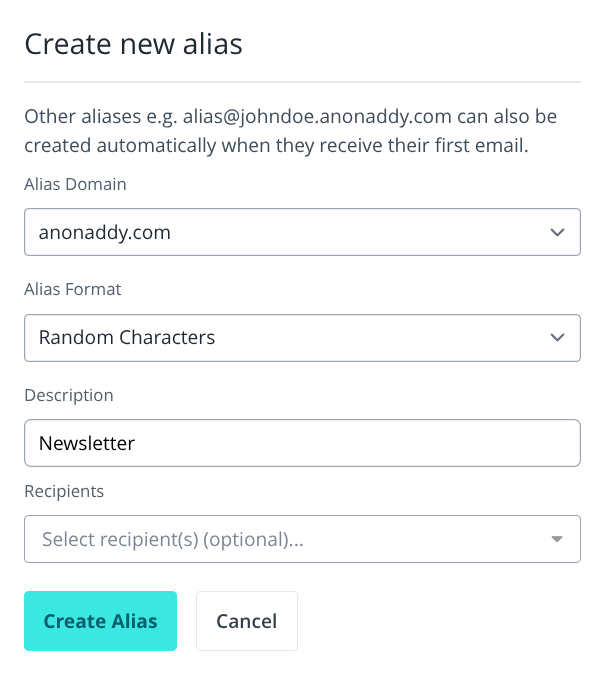
- The Create new alias dialog opens. The intro notes that addresses on your username subdomain can still be created automatically on first email; this dialog is for generating an alias up front.
Choose options
| Field | What to set |
|---|---|
| Alias Domain | The domain for the new alias (username subdomain, custom domain, or shared domain such as anonaddy.me). |
| Alias Format | How the local part is generated - see Alias formats below. |
| Alias Local Part | Shown only when format is Custom - your chosen local part (rules apply on shared domains). |
| Description | Optional but recommended (max 200 characters), especially for random aliases so you remember what each one is for. |
| Recipients | Optional - up to 10 verified recipients. Leave empty to use your account default recipient. |
- Click Create Alias.
If you have reached your shared-domain alias limit on a free or Lite plan, the button may show Subscribe To Add More or Upgrade To Add More instead - see pricing.
Your new address
A Your New Alias is: dialog shows the full address. Use Copy, then give that alias out. Examples:
- UUID format:
86064c92-da41-443e-a2bf-5a7b0247842f@anonaddy.me - Random words:
circus.waltz449@anonaddy.me - Random characters on your subdomain:
x481n904@johndoe.anonaddy.com
Shared-domain aliases are useful when you do not want your username in the address, so sites cannot easily link aliases together.
Note: Random-character, UUID, random-word, and other generated aliases on your own username subdomain or custom domain do not count toward your shared-domain alias limit. Only aliases on shared domains count.
You can change recipients for the alias later if needed.
Alias formats
| Format | Typical use | Plan |
|---|---|---|
| Random Characters | Default; short random local part | All plans |
| UUID | Long unique id as local part | All plans |
| Custom | You choose the local part (e.g. newsletter) |
All plans on standard domains; shared domains require a subscription for custom |
| Random Words | e.g. circus.waltz449 |
Paid |
| Random Male Name / Random Female Name / Random Noun | Human-readable random local parts | Paid |
On a shared domain, free plans are limited to Random Characters and UUID (and Random Words where enabled). Custom local parts on shared domains require a paid plan. addy.io always appends your alias separator and 5 letters and numbers, for example facebook.8an2k@anonaddy.me, to avoid collisions. Defaults for domain and format can be set under Settings > General (Update Default Alias Domain / Update Default Alias Format) - these apply on the website and in the browser extension.
Random characters on custom standard aliases
On a username subdomain, additional username, or custom domain, a Custom alias keeps the local part exactly as you type it unless you turn on Random Characters on Custom Aliases. That option is on Lite and Pro, under Settings > General, and it is off by default.
With it enabled, addy.io adds your alias separator and then 1 to 10 random characters after the text you type. You choose Letters, Numbers, or Letters and numbers. Typing shop, with a period and 5 letters and numbers, can create shop.k3mxp@johndoe.anonaddy.com. The same suffix is added when the website, browser extension, mobile app, or API creates the alias with format Custom. The address in the response is the one to copy and give out.
This does not change catch-all. An address you type on a signup form is created as that exact address when the first email arrives.
Shared domain custom aliases ignore this setting and always use 5 letters and numbers. If you leave Lite or Pro, the option turns off. Resubscribing turns it back on with the length and character set you had chosen.
Browser extension, mobile app, and API
The browser extension and mobile app create aliases using the same rules as the dashboard. Connect them with an API key from Settings > API.
To automate creation, use POST /api/v1/aliases with domain, format, optional local_part (for custom), description, and optional recipient_ids. When Random Characters on Custom Aliases is enabled and format is custom on a standard domain, the returned local part already includes the suffix. Full details: API documentation.
What next?
- Sort and filter aliases as your list grows.
- Deactivate aliases you want to pause without deleting.
- Learn what happens when you delete or forget an alias - especially on shared domains.